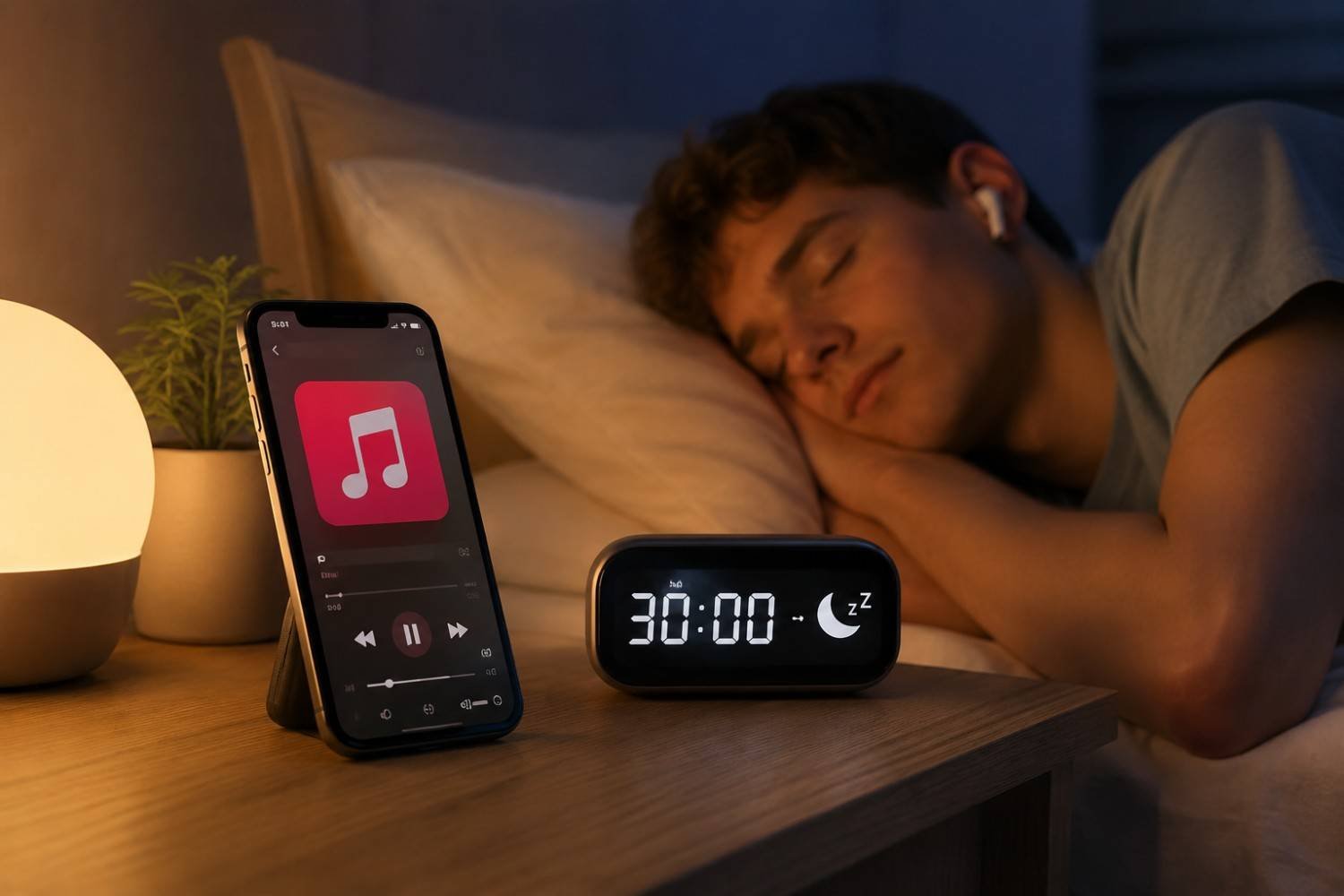
Falling asleep with music playing is a nightly ritual for many people. Whether it’s a calming playlist, white noise, or an audiobook, background audio can make it easier to unwind after a long day. The problem comes later when your music keeps playing for hours after you’ve fallen asleep, draining your battery and interrupting your listening history.
If you’ve ever searched, “Does Apple Music have a sleep timer?” you’re not alone. The answer is yes, but not in the way most people expect. Apple Music itself doesn’t include a dedicated sleep timer on iPhone or iPad, but your device already has everything you need to stop playback automatically.
Does Apple Music Actually Have a Sleep Timer?
The short answer is yes and no.
Apple Music doesn’t offer a sleep timer button inside the app on iPhone or iPad. Instead, Apple uses a built-in feature within the iOS Clock app called Stop Playing, which automatically ends any audio playing on your device when the timer expires.
This approach works with Apple Music, podcasts, audiobooks, and many other media apps, so you don’t need to download a third-party sleep timer.
Android users have it even easier. The Apple Music app for Android includes a dedicated sleep timer directly within the application, making it quicker to set playback limits before bed.
How to Set a Sleep Timer on iPhone or iPad
Setting up a sleep timer only takes about a minute.
- Open the Clock app.
- Tap Timer in the bottom-right corner.
- Choose how long you want your music to play.
- Tap When Timer Ends.
- Scroll all the way down and select Stop Playing.
- Tap Set, then Start.
- Open Apple Music and begin playing your playlist.
Once the countdown reaches zero, your music will stop automatically without requiring any additional apps or settings.
If you regularly fall asleep with music, this is one of the easiest iPhone features to incorporate into your bedtime routine.
Let Siri Handle It for You
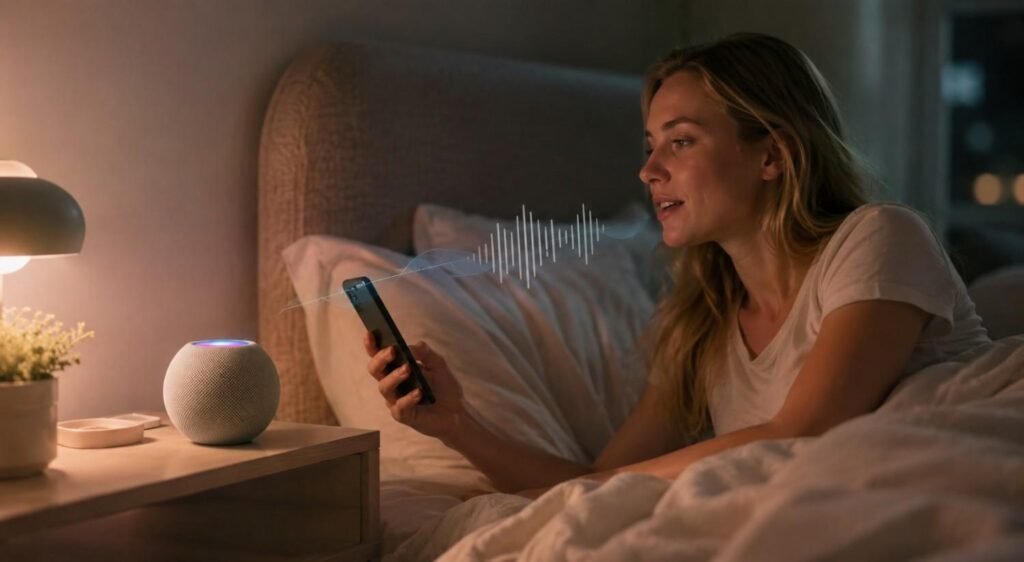
If you don’t want to navigate through the Clock app every night, Siri offers an even faster solution.
Simply start playing your music and say:
“Hey Siri, stop playing music in 45 minutes.”
Siri creates the timer automatically, allowing you to stay in Apple Music without switching between apps.
Voice commands are especially convenient when you’re already in bed or using dimmed screens through Sleep Focus mode.
How It Works on Android
Apple Music functions a little differently on Android devices.
Unlike iOS, Android users can access a built-in sleep timer directly inside the Apple Music app.
To enable it:
- Start playing music in Apple Music.
- Open the Now Playing screen.
- Tap the three-dot menu in the upper-right corner.
- Select Sleep Timer.
- Choose a duration or stop playback when the current song ends.
Since the timer lives inside the app itself, Android users don’t need to rely on system settings.
Why a Sleep Timer Is Worth Using?
Many people think a sleep timer is simply about convenience, but it offers several practical benefits.
First, it prevents your phone from streaming music throughout the night, helping preserve battery life and reducing unnecessary background activity.
Second, it keeps your listening history more accurate. Without a timer, playlists can continue playing for hours, influencing recommendations and making it harder for Apple Music’s algorithm to understand what you genuinely enjoy.
Finally, automatic playback limits create a more intentional bedtime routine. Instead of waking up with headphones still playing or a speaker running until morning, your music ends naturally after you’ve fallen asleep.
If you’re interested in how nighttime listening affects other daily habits, you might also enjoy reading does listening to music break your fast, especially if you prefer listening during early morning or overnight fasting periods.
What to Do If the Sleep Timer Doesn’t Work
Although the feature is reliable, occasional issues can happen.
Double-check that you selected Stop Playing instead of a ringtone under When Timer Ends. Choosing a sound instead of Stop Playing will trigger an alarm rather than stopping your music.
If playback continues unexpectedly, restarting Apple Music or updating your device to the latest version of iOS often resolves the problem. It’s also worth confirming that the timer is still active before locking your screen.
Most issues come down to selecting the wrong timer ending rather than a problem with Apple Music itself.
FAQs: Does Apple Music Have a Sleep Timer? Everything You Need to Know
1. Does Apple Music have a built-in sleep timer on iPhone?
Not inside the app. iPhone users use the Clock app’s Stop Playing feature to stop Apple Music automatically.
2. Can Siri set an Apple Music sleep timer?
Yes. Simply ask Siri to stop playing music after a specific amount of time, and it will create the timer for you.
3. Does Apple Music for Android include a sleep timer?
Yes. Android users can access a built-in sleep timer from the Apple Music app’s menu without using another app.
4. Will the sleep timer work with podcasts and audiobooks?
Yes. The iPhone’s Stop Playing timer works with Apple Music, podcasts, audiobooks, and many other audio apps.
A Simple Feature That Makes Bedtime Listening Better
Apple Music may not display a dedicated sleep timer button on every device, but that doesn’t mean you’re stuck letting music play until morning. Between the iPhone’s built-in Clock app, Siri voice commands, and Android’s native sleep timer, it’s easy to stop playback automatically without installing extra software. Once you know where to find the feature, setting it up becomes part of your nightly routine.
Sometimes the most useful features are the ones already built into your device you just need to know where to look.