I know how annoying it is when your phone says “connected,” but your favorite song still refuses to play through the car speakers. That usually happens because pairing your phone and choosing the music source are two different steps. This guide explains how to connect phone to ford sync to play music in a simple way, whether you drive a Ford F-150, Explorer, Escape, Bronco, Mustang, Edge, or another everyday Ford model.
Quick Answer
Turn on Bluetooth on your phone, open the Phone or Settings menu on your Ford screen, choose Add Device or Add Phone, select SYNC from your phone’s Bluetooth list, confirm the PIN, and allow media audio access.
After pairing, go to Audio, Media, or Source and choose Bluetooth Audio. Then open Spotify, Apple Music, YouTube Music, Pandora, Amazon Music, or a podcast app and press play.
Check Your Ford SYNC Version First
Ford vehicles use different SYNC systems. Older models may have buttons and a smaller display, while SYNC 3, SYNC 4, and SYNC 4A usually have touchscreen menus. The process is similar, but the wording on the screen may change.
Before you begin, park the vehicle, turn on your phone’s Bluetooth, and make sure your phone is not already connected to earbuds, a speaker, another car, or an underground music playlist device you used earlier.
Step-by-Step Bluetooth Setup for Ford SYNC
Start your Ford and keep it in park. On your phone, open Bluetooth settings. On your Ford screen, tap Phone, Settings, or Add Device. The system should begin searching for nearby phones.
When SYNC appears on your phone, tap it. A PIN may appear on both your phone and Ford display. Confirm that the numbers match, then accept the pairing request. Your phone may ask for permission to share contacts, messages, and media audio. For music, media audio permission matters most.
How to Select Bluetooth Audio and Play Music
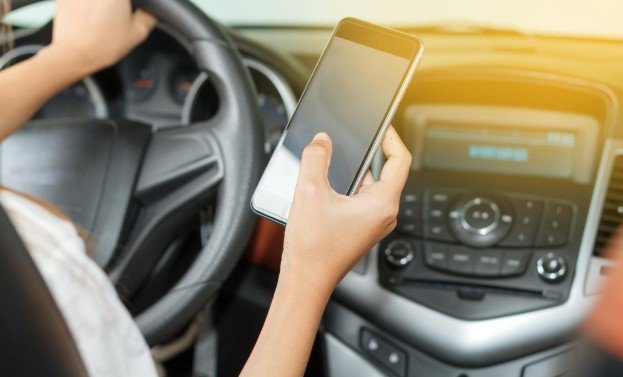
After pairing, press Audio, Media, or Source on the Ford screen. Choose Bluetooth Audio from the available options. Open your music app and press play.
On older Ford SYNC systems, you may need to press the Media button, open Menu, select Source, and then choose Bluetooth Audio. Some models also support voice commands. Press the voice button and say “Bluetooth Audio,” “Play,” “Pause,” or “Next Track.”
How to Connect iPhone to Ford SYNC for Music
For iPhone users, Bluetooth is the easiest wireless option. Open Settings, tap Bluetooth, and select SYNC when it appears. Confirm the PIN and allow permissions. After pairing, select Bluetooth Audio from the vehicle’s media menu.
If your Ford supports Apple CarPlay, connect your iPhone with a USB cable or use wireless CarPlay if available. CarPlay gives you a cleaner screen for calls, maps, messages, and music apps. It is a strong choice for daily commuting, weekend drives, and long highway trips.
How to Connect Android to Ford SYNC for Music
For Android phones, open Settings, go to Bluetooth or Connected Devices, and pair with SYNC. Accept the pairing request and allow media audio. If music does not play, open the Bluetooth connection settings on your phone and make sure media audio is enabled for SYNC.
If your Ford supports Android Auto, connect with USB or wireless Android Auto. This can make music, navigation, and voice control easier to manage from the vehicle screen.
Bluetooth vs USB vs CarPlay vs Android Auto
Bluetooth is best for quick wireless music playback. USB is useful when you want a stable connection and phone charging. Apple CarPlay and Android Auto are better if you want app controls, maps, calls, and music in one dashboard-friendly layout.
If you only want to play songs, Bluetooth is enough. If you want smoother control and fewer menu problems, CarPlay or Android Auto may be better.
Why Your Phone Connects but Music Does Not Play

A common issue is that your phone connects for calls but not media. Your Ford may still be set to radio, USB, or another audio source. Manually choose Bluetooth Audio.
Also check your phone volume, car volume, and app volume. Make sure the music app is not paused. If your phone was recently connected to wireless earbuds, it may still be sending audio there instead of your Ford speakers.
Ford SYNC Music Troubleshooting Fixes
If music still does not play, turn Bluetooth off and back on. Restart your phone. Delete SYNC from your phone’s Bluetooth list, remove your phone from the Ford system, and pair it again. This can also help when you want to drive with Android Auto without connection issues.
You can also remove old phones from the vehicle if several devices are saved. If Bluetooth keeps failing, try a USB cable. If USB works but Bluetooth does not, the issue is usually media permission, source selection, or an old pairing error.
Frequently Asked Questions
1. Why is my Ford SYNC connected but not playing music?
Your phone may be connected for calls only. Select Bluetooth Audio from the Ford media menu and check that media audio is enabled on your phone.
2. Can I play Spotify through Ford SYNC?
Yes. Pair your phone, select Bluetooth Audio, open Spotify, and press play. Newer Ford systems may also support Spotify through Apple CarPlay or Android Auto.
3. Do I need a USB cable for Ford SYNC music?
No. Bluetooth can play music wirelessly. USB is helpful if you want charging, steadier connection, or CarPlay and Android Auto access.
4. What is the easiest way to learn how to connect phone to ford sync to play music?
Pair your phone through Bluetooth, then switch the Ford audio source to Bluetooth Audio before pressing play in your music app.
Final Takeaways
I would not stop after pairing the phone, because pairing alone does not always send sound through the speakers. The real trick is selecting the right music source after the phone connects. Once you understand Bluetooth Audio, USB, Apple CarPlay, and Android Auto, how to connect phone to ford sync to play music becomes simple. After the first setup, your Ford should usually remember your phone and make every drive feel easier.