Music streaming has made it easier than ever to keep the same playlists across multiple devices. At the same time, that convenience can become frustrating when songs appear where you don’t want them, albums disappear unexpectedly, or your carefully organized library starts changing on its own. If you’ve experienced duplicate tracks, missing downloads, or unexpected syncing, you’re not alone.
Many people search for ways to regain control of their music collection without accidentally deleting their favorite songs. Learning how to turn off iCloud Music Library is often the first step. Whether you’re switching to manual music management, adding local MP3 files, or simply trying to stop automatic syncing, understanding how this feature works can help you avoid unnecessary headaches and keep your music library organized.
How to Turn Off iCloud Music Library on iPhone and iPad
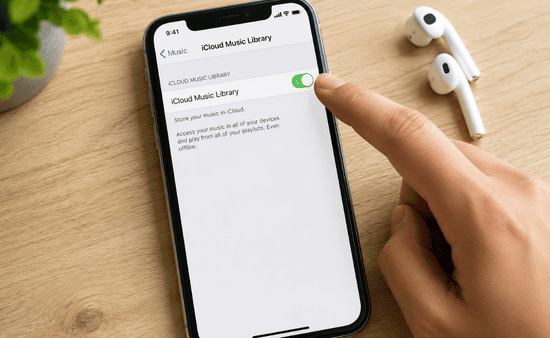
If your goal is to stop automatic syncing on your mobile device while keeping your main music library intact elsewhere, the process only takes a minute.
Follow these steps:
- Open the Settings app.
- Scroll down and tap Music. On newer software versions, go to Apps > Music.
- Find the Sync Library option under the Library section.
- Toggle Sync Library off.
- When prompted, tap Turn Off to confirm your choice.
Once disabled, your device will stop syncing music changes with your cloud library. Existing cloud-based downloads stored specifically for offline listening on that device will be removed, while your master library remains available through your Apple account on other devices.
How to Turn Off iCloud Music Library on Mac
If you primarily organize your music from a Mac, disabling Sync Library is just as straightforward. This option is useful if you’d rather manage music files manually or prevent automatic syncing while making changes to your library.
Follow these steps:
- Open the Apple Music app.
- Click Music in the menu bar.
- Select Settings (or Preferences on older macOS versions).
- Open the General tab.
- Uncheck the box next to Sync Library.
- Click OK to save your changes.
Managing Local Music Without Sync Problems
Many people disable Sync Library because they have music collections that streaming services simply don’t include. Rare recordings, live concerts, personal audio projects, or downloaded MP3 files often require manual management instead of cloud syncing.
If that’s your goal, a few simple habits can help you avoid future problems:
- Leave Sync Library enabled on your primary computer if it contains your main music collection.
- Turn Sync Library off only on the device where you want manual control.
- Back up important local music files before making changes.
- Connect your iPhone or iPad to your computer using a USB cable when transferring music manually.
- Use Finder on Mac or iTunes on Windows to drag music directly onto your device.
This approach lets you enjoy the flexibility of local music management without affecting the rest of your cloud-based library.
If you’re someone who enjoys creating playlists for every occasion, you might also enjoy exploring what kind of music dogs like to build relaxing playlists that everyone at home—including your pets—can enjoy.
Common Sync Problems and How to Fix Them
Even after turning off Sync Library, you may notice a few issues at first. Most of them are temporary and easy to resolve.
Missing Songs
If certain tracks disappear, they’re often Apple Music downloads that were only available while Sync Library was active. Check whether they’re stored locally or simply need to be downloaded again.
Duplicate Music
Duplicate albums usually appear after importing the same files multiple times or syncing from different sources. Cleaning up duplicate files before transferring music manually can prevent this issue.
Sync Library Option Is Missing
Some users don’t see the setting at all. This often happens if they aren’t signed in with the correct Apple ID or don’t have an active Apple Music or iTunes Match subscription.
Music Won’t Transfer Manually
If your device refuses to accept manually added songs, restart both the device and your computer, reconnect the USB cable, and confirm that Sync Library is still turned off before trying again.
Playlists Don’t Match Across Devices
Once Sync Library is disabled, playlists are no longer updated automatically. This is expected behavior and simply means each device now maintains its own music library independently.
Frequently Asked Questions: How to Turn Off iCloud Music Library Without Sync Problems
Can I turn off iCloud Music Library without deleting my music?
Yes. Turning off Sync Library only affects the specific device where you disable it. Your cloud library remains available on other devices signed in with the same Apple ID. However, downloaded Apple Music tracks stored offline on that device will be removed.
Will I lose my playlists after turning off Sync Library?
Your playlists stored in iCloud aren’t deleted. They simply stop syncing to the device where Sync Library has been turned off. If you enable the feature again later, your cloud playlists can reappear.
Can I still add music manually after disabling Sync Library?
Absolutely. In fact, many users disable Sync Library specifically so they can transfer local MP3, AAC, or other supported audio files using Finder on Mac or iTunes on Windows through a USB connection.
Why is the Sync Library option missing on my device?
This usually happens if you’re not signed in with the correct Apple ID, don’t have an active Apple Music or iTunes Match subscription, or your device software doesn’t support the feature. Updating your software and checking your account settings often resolves the issue.
Take Control of Your Music, Your Way
Music libraries are personal. Some people want every playlist to stay perfectly synced across every device, while others prefer organizing collections manually, especially when they have rare recordings, personal audio files, or carefully curated playlists.
Knowing how to turn off iCloud Music Library gives you the flexibility to choose the approach that fits your listening habits instead of letting automatic syncing make those decisions for you. A few minutes spent adjusting the right settings today can save hours of troubleshooting duplicate tracks, missing downloads, or unwanted library changes later.
Whether you stick with cloud syncing or switch to manual music management, the best setup is the one that keeps your collection organized and easy to enjoy.